Create a project and set units
Open the app, choose your language and units, and confirm baseline optimization preferences before entering data.
CutOps is a kerf-aware sheet optimization workspace for panel-based production. Use this guide to set up parts and stock, tune optimization, review layouts, and export production-ready output.
Use this checklist to run your first valid optimization cycle.
Open the app, choose your language and units, and confirm baseline optimization preferences before entering data.
Enter part dimensions and quantities, then define available stock sheets with matching material context.
Run optimization, inspect layout quality and unallocated parts, then export the output your team needs.
Input quality directly affects layout quality. Keep data clean and consistent.
Provide width, length, quantity, and material values. Use consistent naming and unit handling to reduce avoidable fit errors.
Tip: Disable rows instead of deleting them when comparing what-if cases.
Add stock dimensions, quantity, and material labels. In fixed-stock mode, entered quantities cap what can be allocated.
Tip: Keep stock materials aligned with part materials when material matching is enabled.
Settings control allocation feasibility, cut count, and final yield behavior.
Kerf width reduces usable stock area. Incorrect kerf values can make a plan look feasible on-screen but fail in production.
Mode, rotation policy, and grain handling all affect solution shape, cut sequence, and waste profile.
Fixed stock respects entered sheet quantities. Unlimited stock can add matching sheets to complete feasible allocations.
Confirm output quality before handing plans to production.
Inspect sheet usage, part placement, offcuts, and unallocated items across generated patterns before finalizing a run.
Use the ordered cut list and print-friendly views to verify sequence clarity for production handoff.
Export current project data and available output artifacts for review, communication, and execution preparation.
These limits help set realistic expectations for current deployments.
The MVP focuses on parts, stock, optimization settings, result review, and export. Account systems and advanced commercial controls are not the focus of this stage.
Generated plans are decision support outputs. Final dimensions, material fit, and machine safety checks stay with the operating team.
Quick screenshots for common steps in the CutOps workflow.
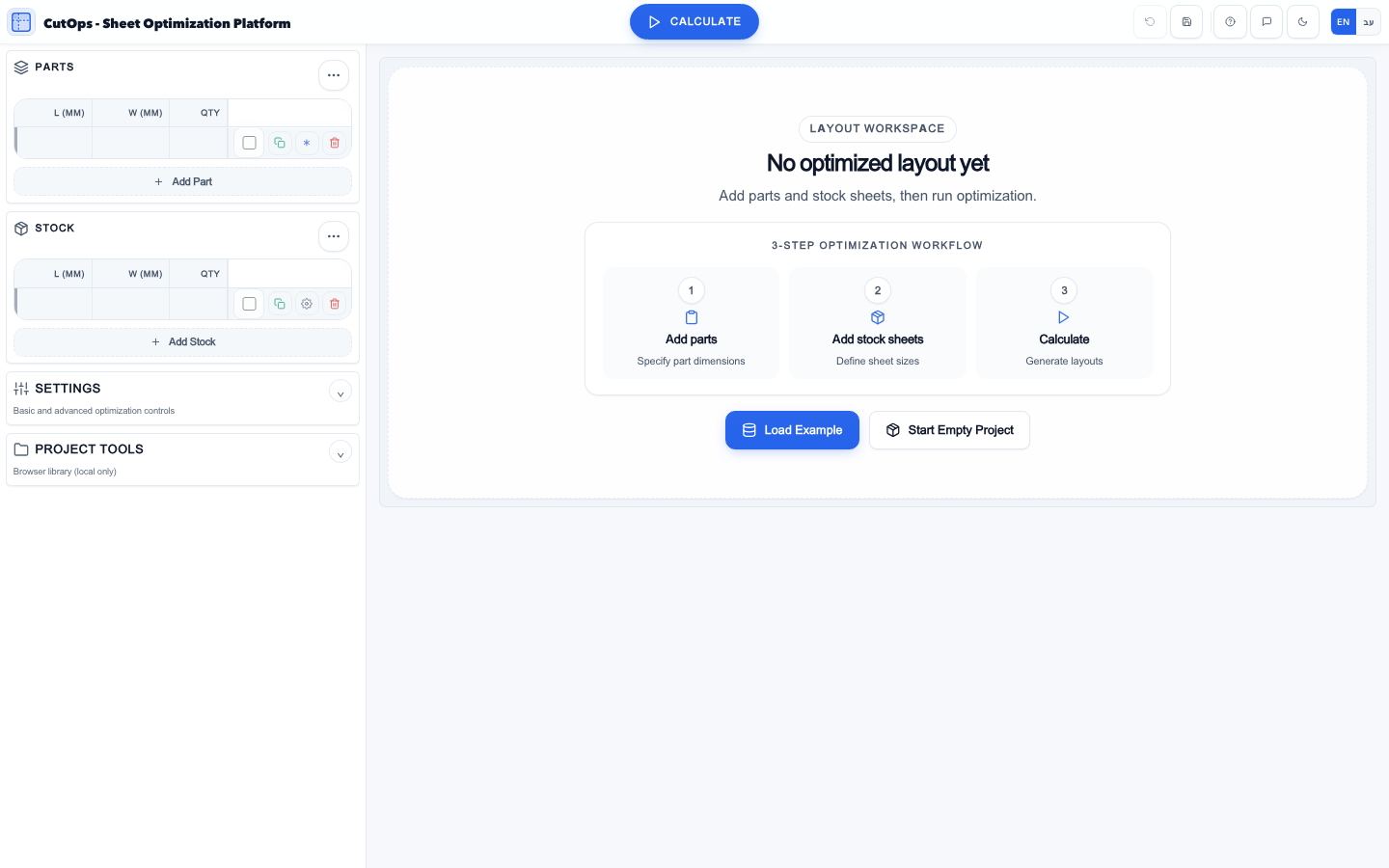
Enter part size, quantity, and material context.
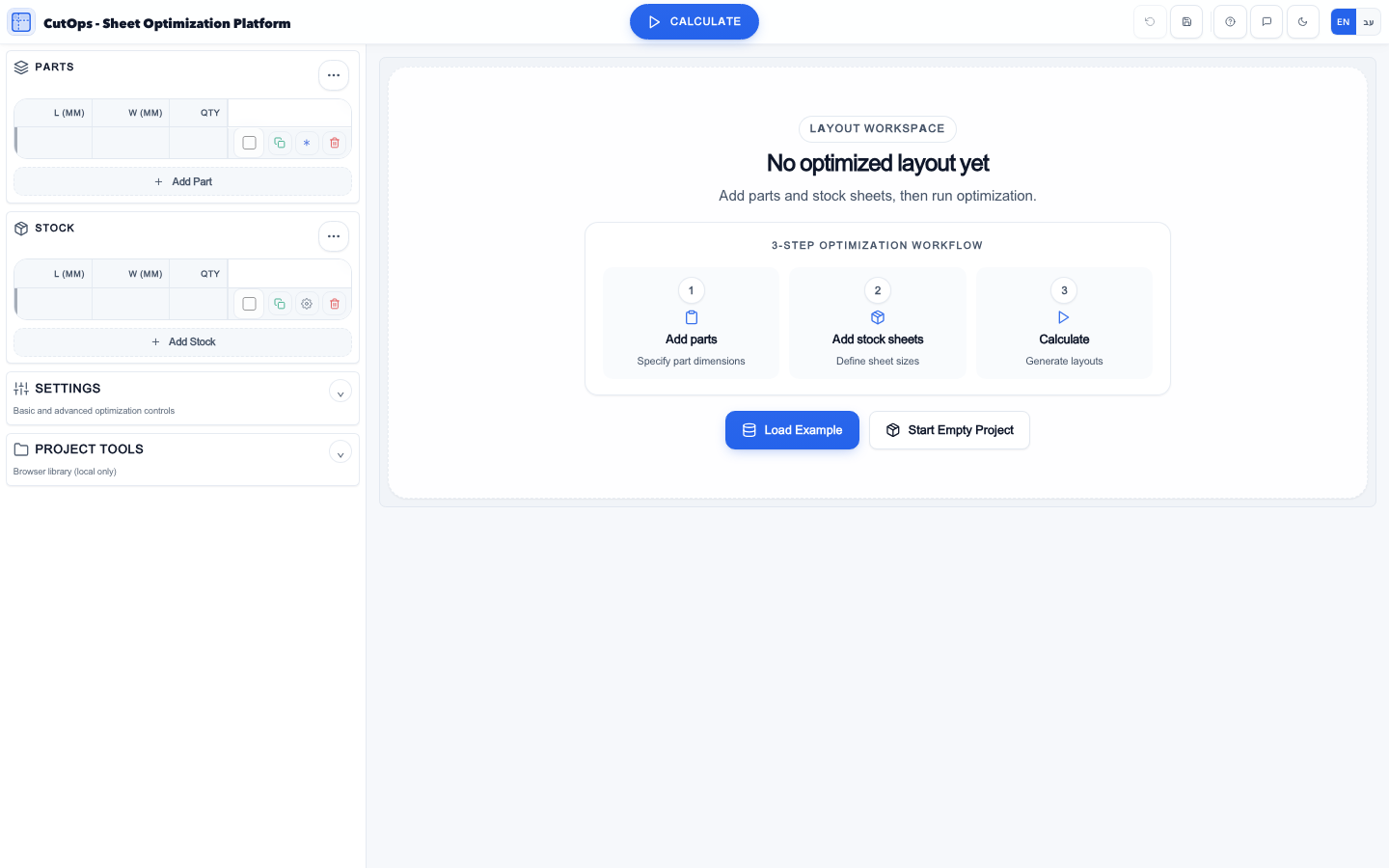
Define available sheets and sheet quantities per stock row.
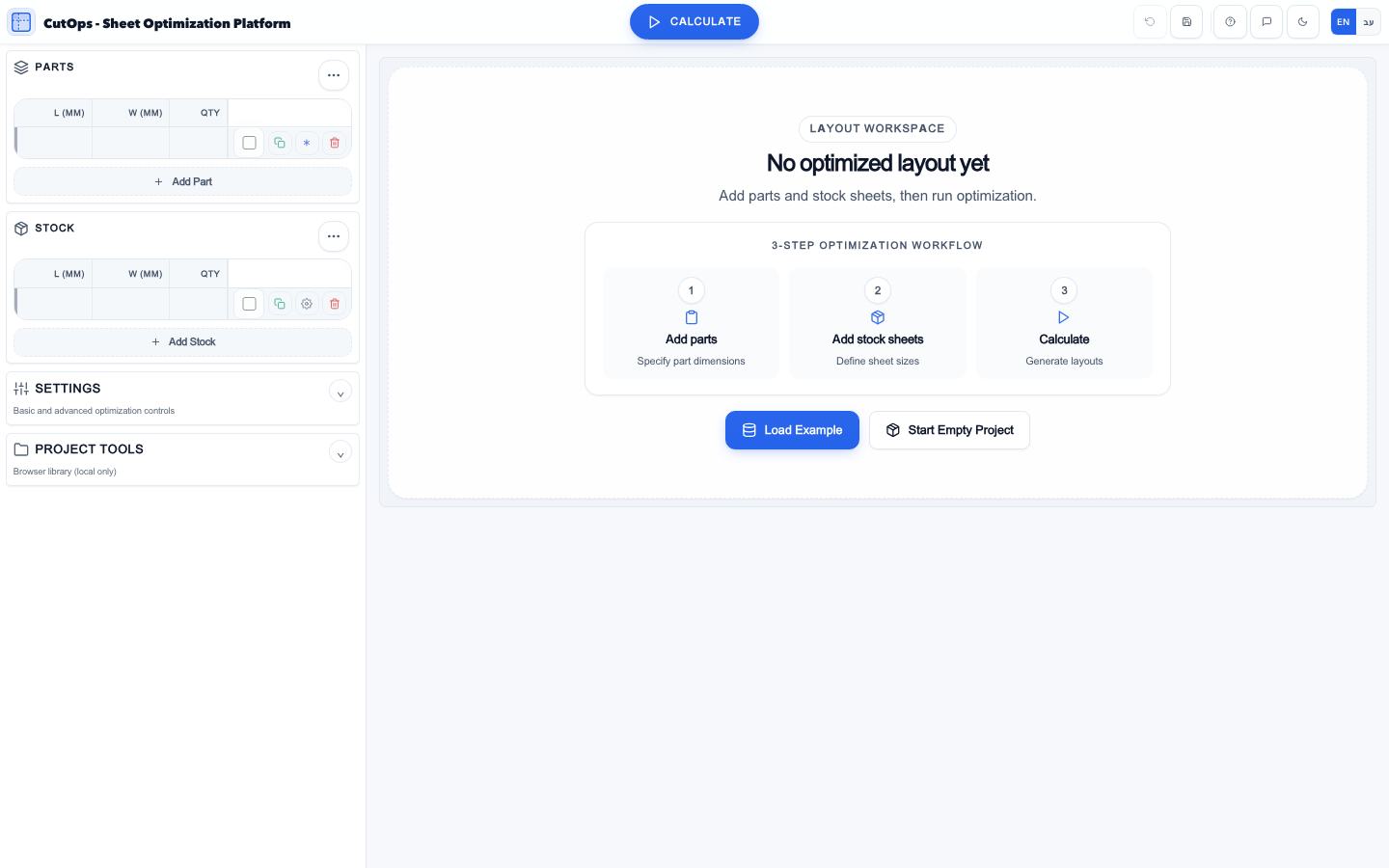
Configure kerf, optimization mode, and advanced controls.

Inspect layouts, statistics, and ordered cut information.
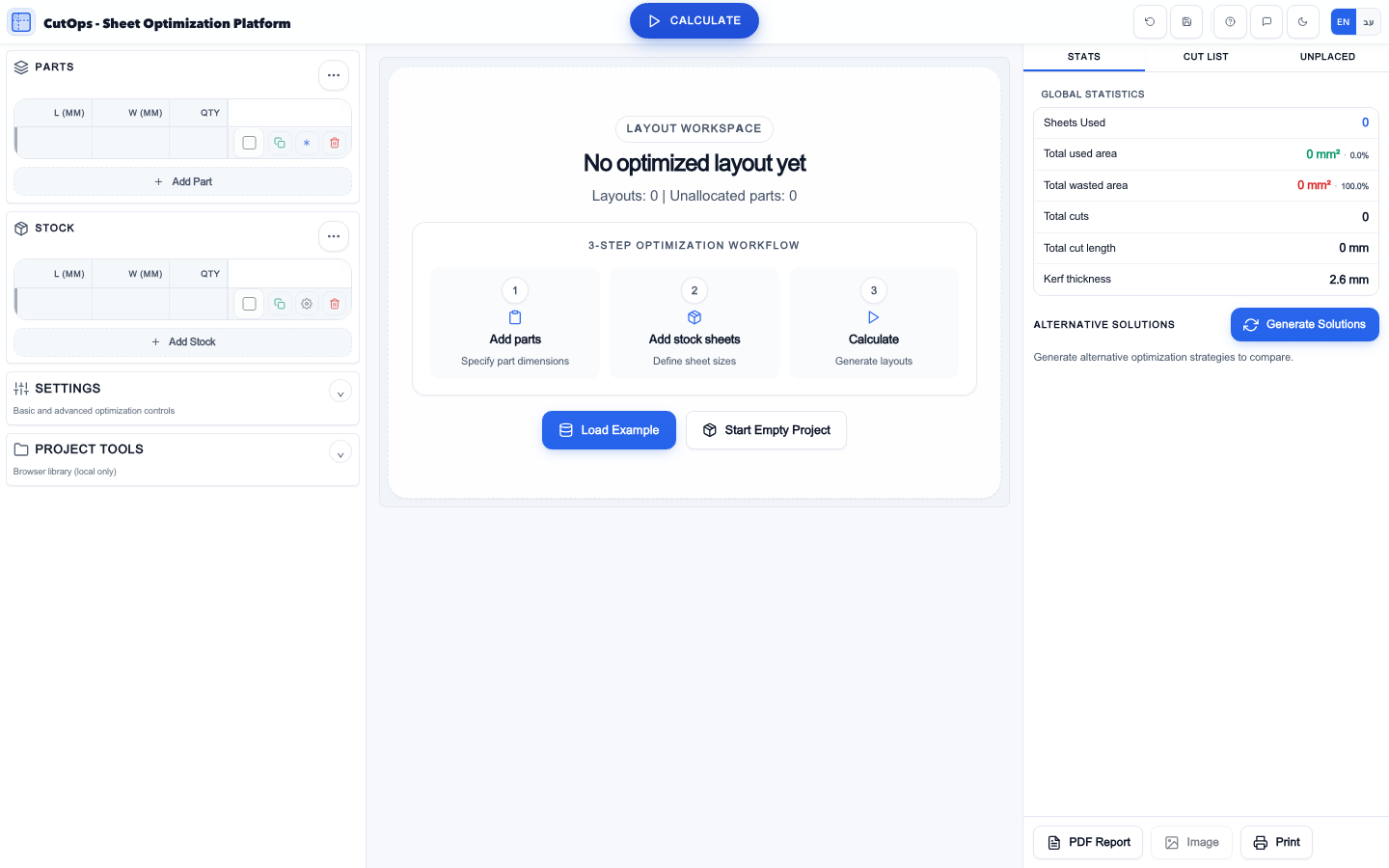
Export PDF report, image output, or print-ready view.
Use these checks before escalating to support.
Verify part size against stock size, confirm kerf value, and review rotation or grain constraints that may prevent placement.
Confirm that mode, stock scope, and enabled rows match your intended setup before rerunning optimization.
Some exports require a completed run and active pattern selection. Re-run and select a pattern if export controls are disabled.
Common questions from first-time teams.
The current public workspace is reachable directly at app.cutops.io.
No. Always validate dimensions, material fit, and machine setup before production cutting.
Use the support route at cutops.io/support and include context for reproducibility.
Use the contact route at cutops.io/contact.
Use support for unresolved product issues and contact for rollout or commercial requests.